Adding GearLocker to your Mobile Phone Home Screen
Add GearLocker to a Mobile Phone or iPad Home Screen
Objective
This article explains how to add the GearLocker web application to a mobile phone or iPad home screen. Following these steps will create an fully functioning mobile app that opens directly from the device home screen.
Key Steps
1. Open GearLocker in a Mobile Browser 0:03
- Open a web browser on your mobile phone or iPad.
- Navigate to app.gearlocker.com.
- Confirm the site has loaded before continuing to the next step.
2. Open the Browser Menu 0:03
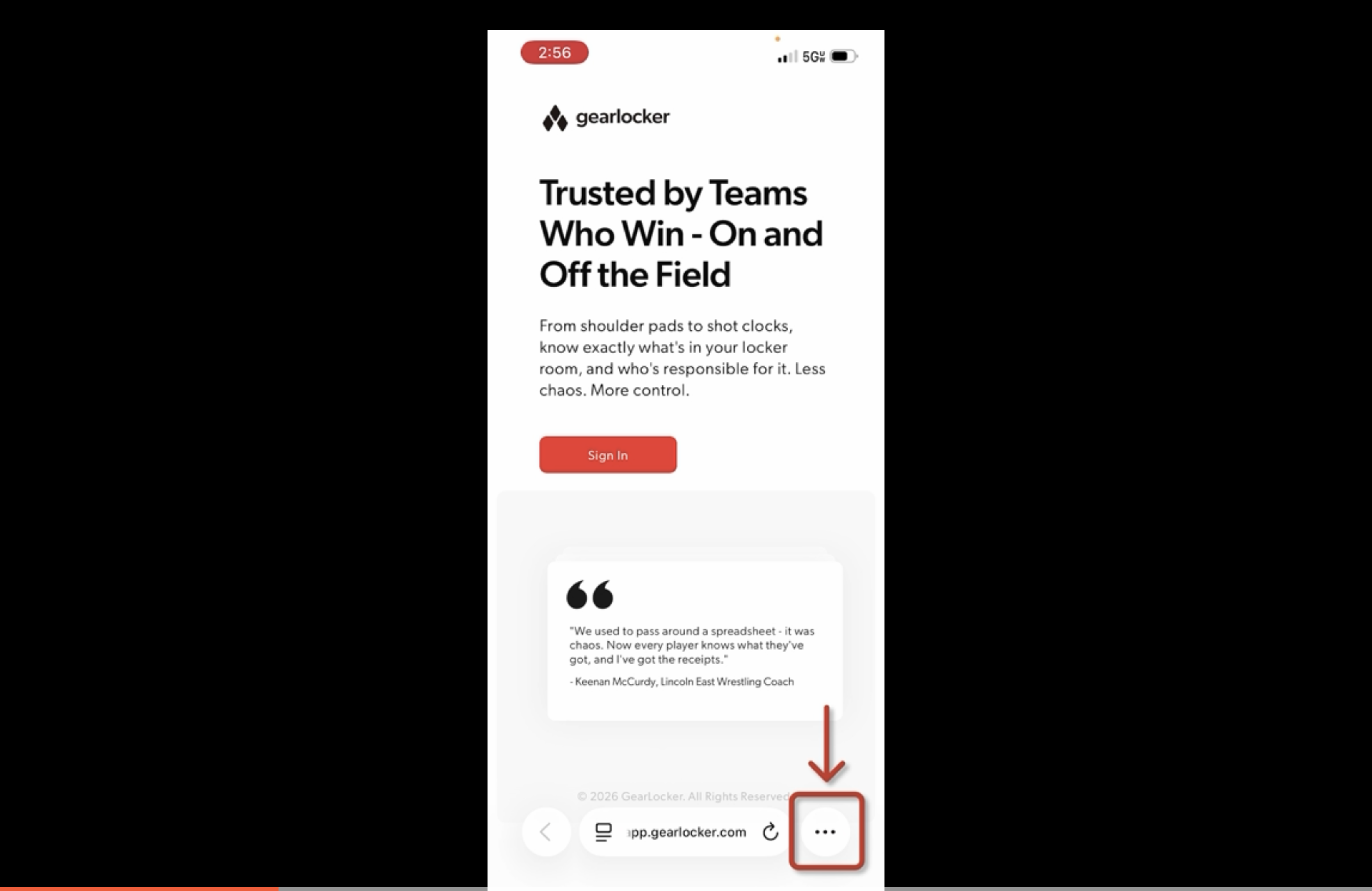
- In the bottom-right corner of the browser, locate the three dots menu icon.
- Tap the three dots to open the browser menu.
3. Select the Share Option 0:03
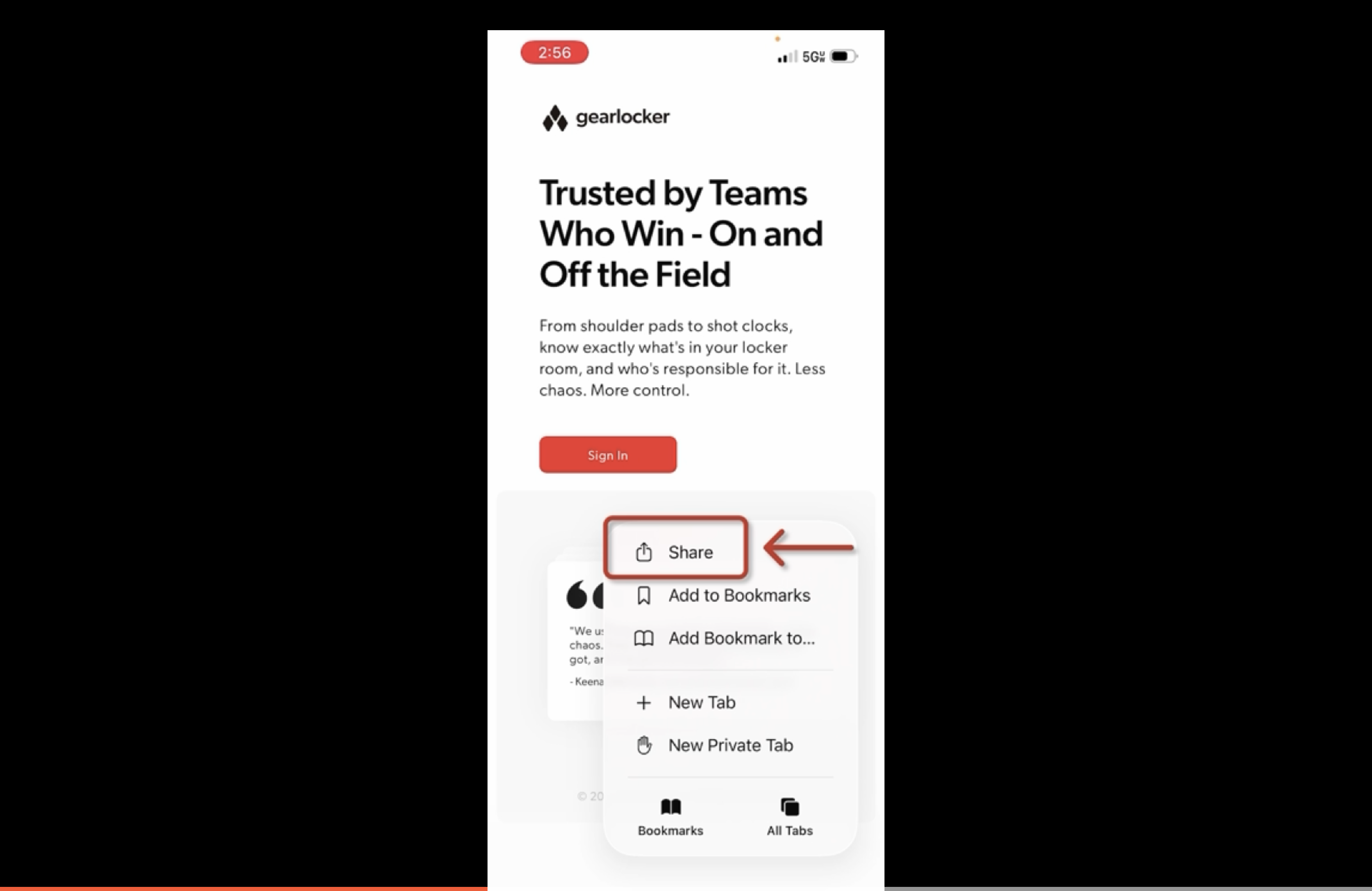
- In the menu, find the Share button at the top.
- Tap Share to open the device sharing options.
- If the share sheet does not appear immediately, wait a moment for it to load.
4. Choose Add to Home Screen 0:19
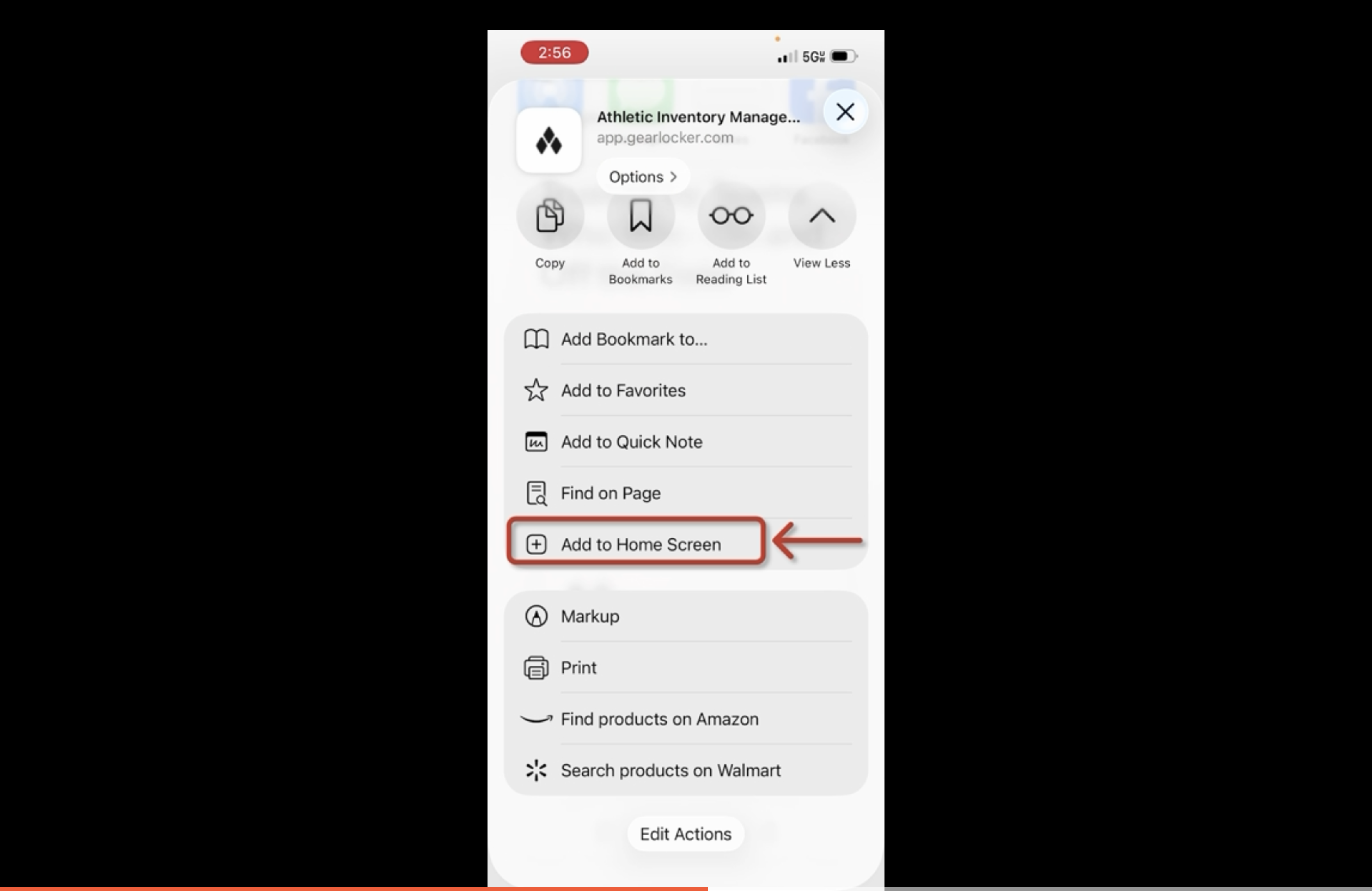
- Scroll through the share options until you see Add to Home Screen.
- Tap Add to Home Screen.
- Verify that the Open as web app option is already toggled on.
5. Confirm and Add the App 0:32
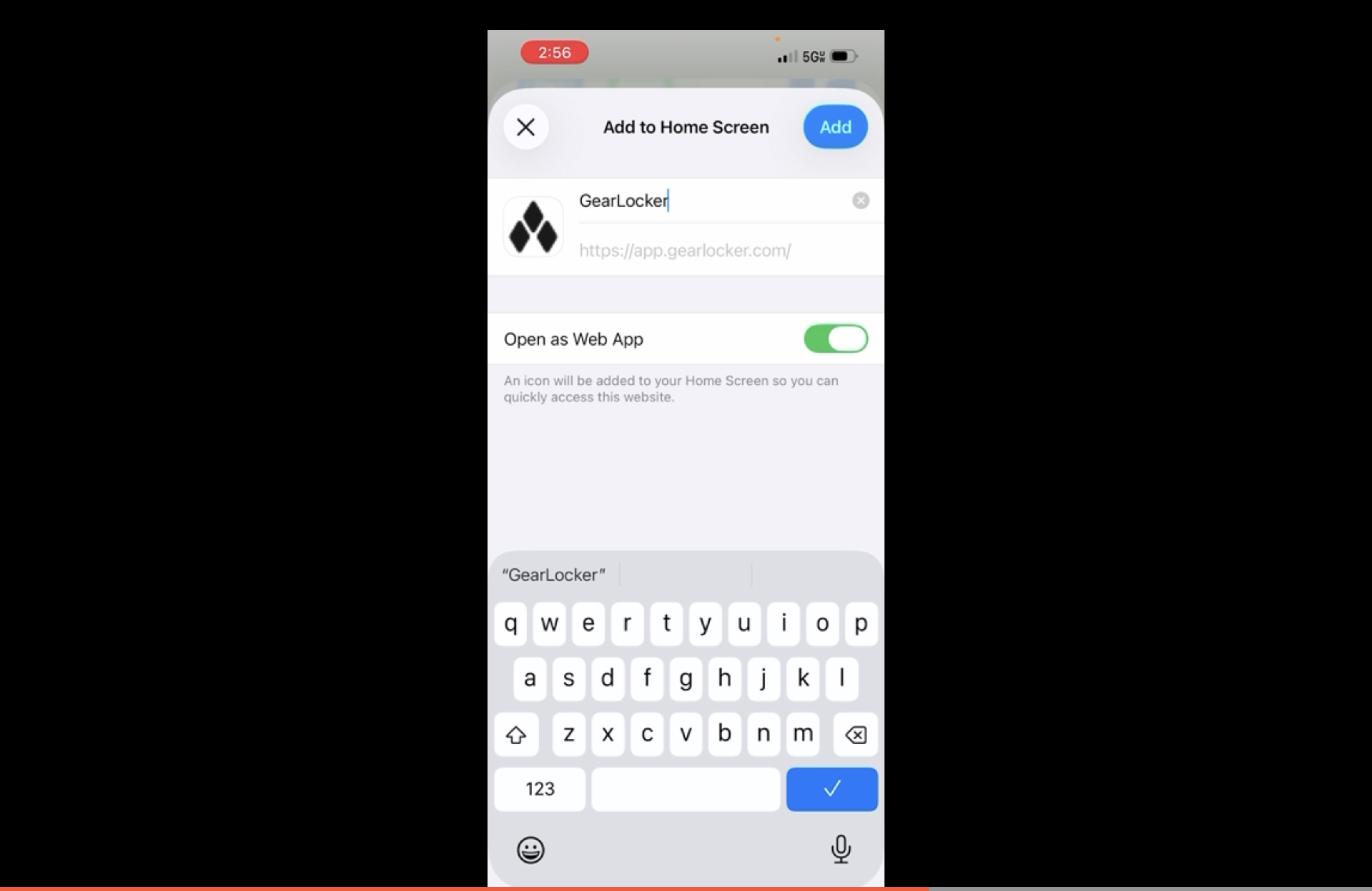
- Tap the Add button to complete the process.
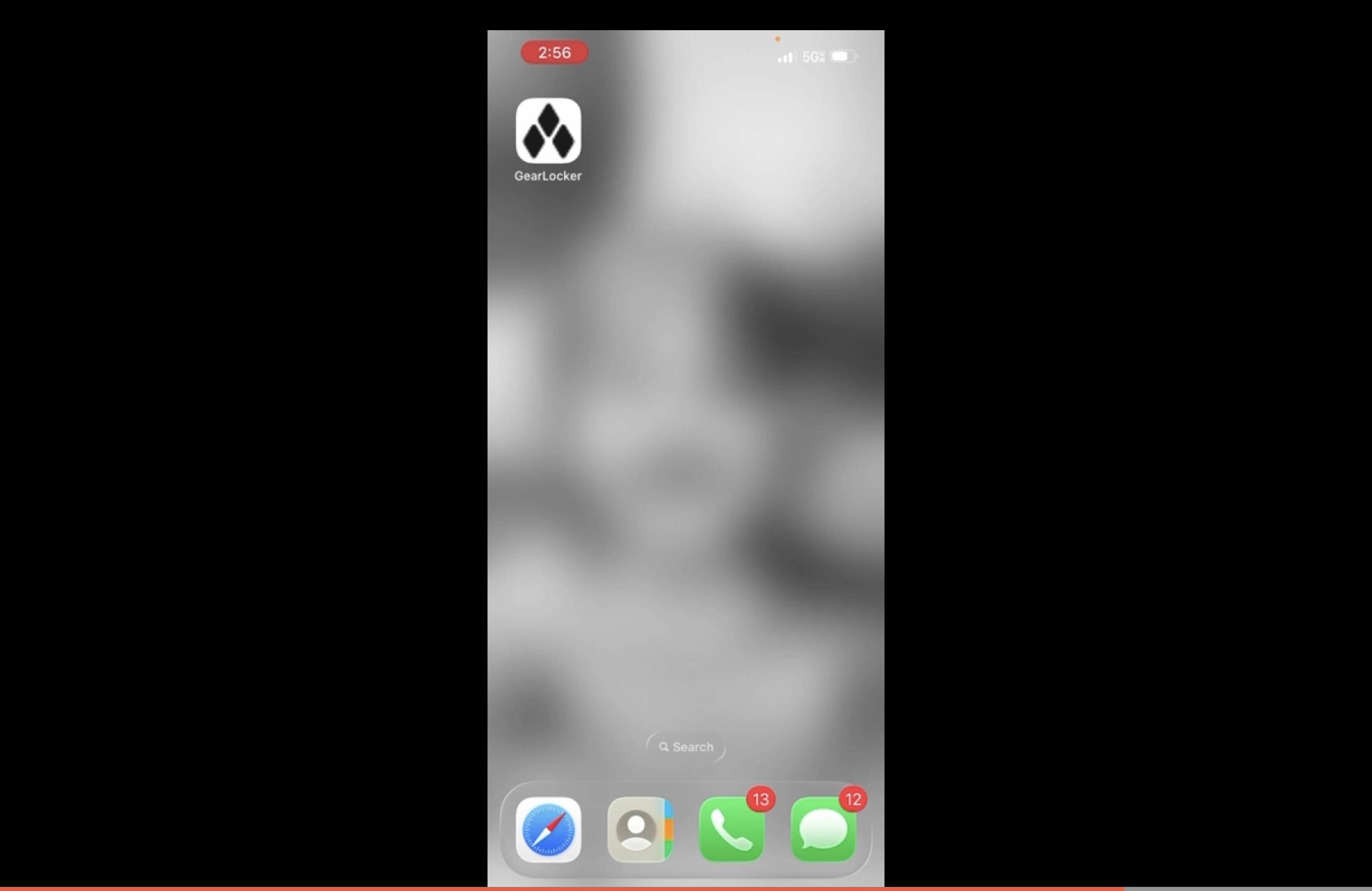
- Confirm that GearLocker now appears on the device home screen.
- Launch the icon from the home screen to access GearLocker as a fully functioning web app.
Cautionary Notes
- Do not skip the Share step; the Add to Home Screen option is accessed from the share menu.
- Ensure Open as web app remains enabled so GearLocker opens correctly.
- If the browser interface looks different, confirm you are using a supported mobile browser and that the page is fully loaded before proceeding.
Tips for Efficiency
- Keep GearLocker.com bookmarked in the browser for faster access if needed.
- After adding the icon, test it once to make sure it opens correctly from the home screen.